Overview
Stephen – Sales Manager:
Hi All!
I hope you are doing well. We need to improve our internet sales reports and want to move from static reports to visual dashboards.
Essentially we want to focus on how much we have sold of what products to which clients and how it has been over time.
Seeing as each sales person works on different products and customers it would be beneficial to be able to filter them also.
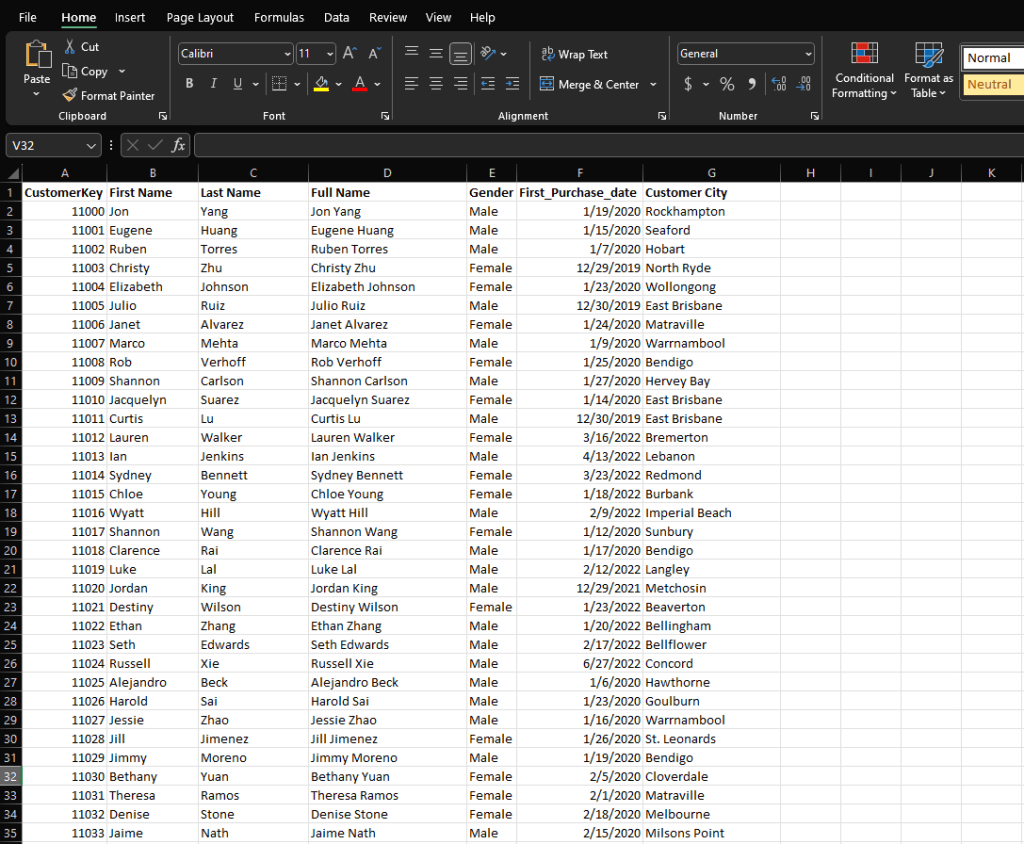
We measure our numbers against budget so I added that in a spreadsheet so we can compare our values against performance.
The budget is for 2021 and we usually look at least 2 years back in time when we do analysis of sales.
Let me know if you need anything else!
Stephen
Business Request & User Stories
The data analysis project was initiated in response to a business need for an executive sales report, specifically tailored for sales managers. To meet this requirement, a set of user stories was formulated to guide the project, ensuring the fulfillment of delivery objectives and the maintenance of acceptance criteria.
| User Role | User Request | User Value | Acceptance Criteria | |
| 1 | Sales Manager | Internet sales dashboard for customer and product insights | Analyze top-performing customers and products | Daily-updating Power BI dashboard |
| 2 | Sales Rep | Customer-specific internet sales analysis | Identify high-value customers and upsell opportunities | Power BI dashboard with customer filtering |
| 3 | Sales Rep | Product-specific internet sales analysis | Track best-selling products | Power BI dashboard with product filtering |
| 4 | Sales Manager | Sales overview dashboard with budget comparison | Monitor sales performance against budget | Power BI dashboard with graphs and KPIs comparing to budget |
Data Cleansing & Transformation (SQL)
To create the necessary data for doing analysis and fulfilling the business needs defined in the user stories, the following tables were extracted using SQL in Microsoft SQL Server Management Studio.
Tables were utilized from Microsoft’s AdventureWorks sample dataset. One additional data source (sales budget) was provided in Excel format and was connected in the data model in a later step of the process.
Below are the SQL statements for cleansing and transforming data.
--Cleaned DimDate Table--
SELECT Datekey,
       FullDateAlternateKey AS DATE,
       EnglishDayNameOfWeek AS Day,
       EnglishMonthName AS Month,
       LEFT(EnglishMonthName, 3) AS Month_abv,
       MonthNumberOfYear AS Month_Num,
       CalendarQuarter AS Quarter,
       CalendarYear AS Year
FROM dbo.DimDate
WHERE CalendarYear >= 2019;
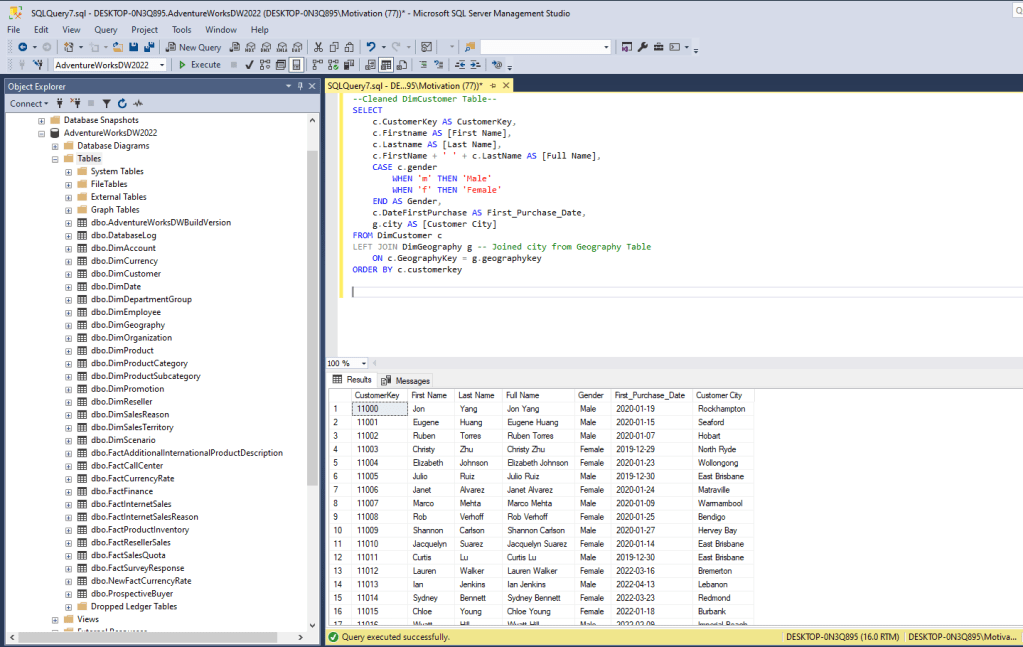
--Cleaned DimCustomer Table--
SELECT
c.CustomerKey AS CustomerKey,
c.Firstname AS [First Name],
c.Lastname AS [Last Name],
c.FirstName + ' ' + c.LastName AS [Full Name],
CASE c.gender
WHEN 'm' THEN 'Male'
WHEN 'f' THEN 'Female'
END AS Gender,
c.DateFirstPurchase AS First_Purchase_Date,
g.city AS [Customer City]
FROM DimCustomer c
LEFT JOIN DimGeography g -- Joined city from Geography Table
ON c.GeographyKey = g.geographykey
ORDER BY c.customerkey;
--Cleaned DimProduct Table--
SELECT
	p.productkey,
	p.ProductAlternateKey AS ProductCode,
	p.EnglishProductName AS ProductName,
	ps.EnglishProductSubcategoryName AS [Sub Category],
	pc.EnglishProductCategoryName AS [Product Category],
	p.color AS [Product Color],
	p.size AS [Product Size],
	p.ProductLine AS [Product Line],
	p.ModelName AS [Product Model Name],
	p.EnglishDescription AS [Product Description],
	ISNULL (p.Status, 'Outdated') AS [Product Status]
FROM
	DimProduct p
LEFT JOIN DimProductCategory pc
	ON p.EnglishProductName = pc.EnglishProductCategoryName
LEFT JOIN DimProductSubcategory ps
	ON p.ProductSubcategoryKey = ps.ProductSubcategoryKey
ORDER BY p.productkey;
--Cleaned FactInternetSales Table--
SELECT
	ProductKey,
	OrderDateKey,
	DueDateKey,
	ShipDateKey,
	CustomerKey,
	SalesOrderNumber,
	SalesAmount
FROM FactInternetSales
WHERE
	LEFT (OrderDateKey, 4) >= YEAR(GETDATE()) -3 -- Ensures only previous two years of data;
Data Model
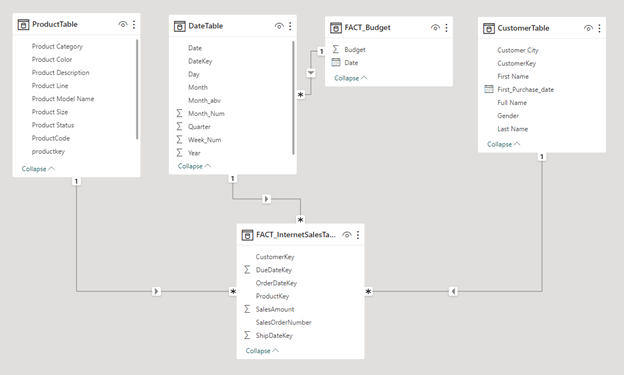
This screenshot displays the data model, showcasing the integration of cleaned and prepared tables into Power BI. It illustrates the connection between FACT_Budget and FACT_InternetSalesTable, along with the other essential tables.
Dashboard Creation (Power BI)
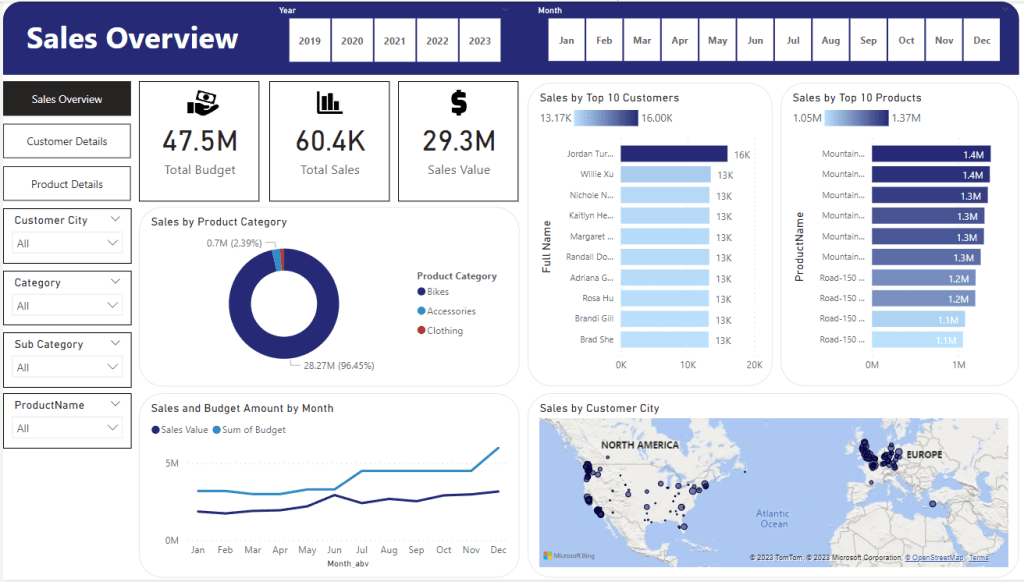
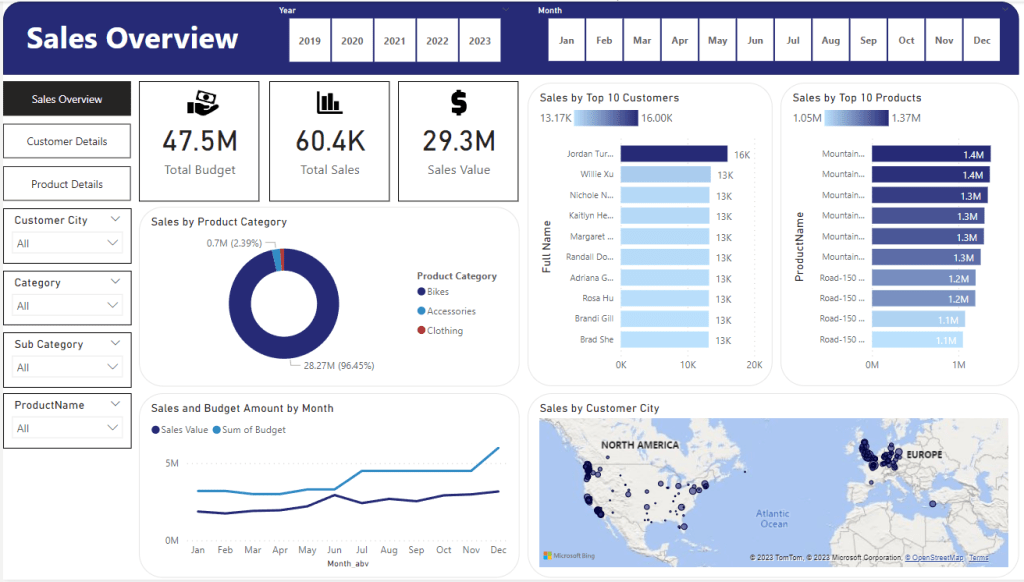
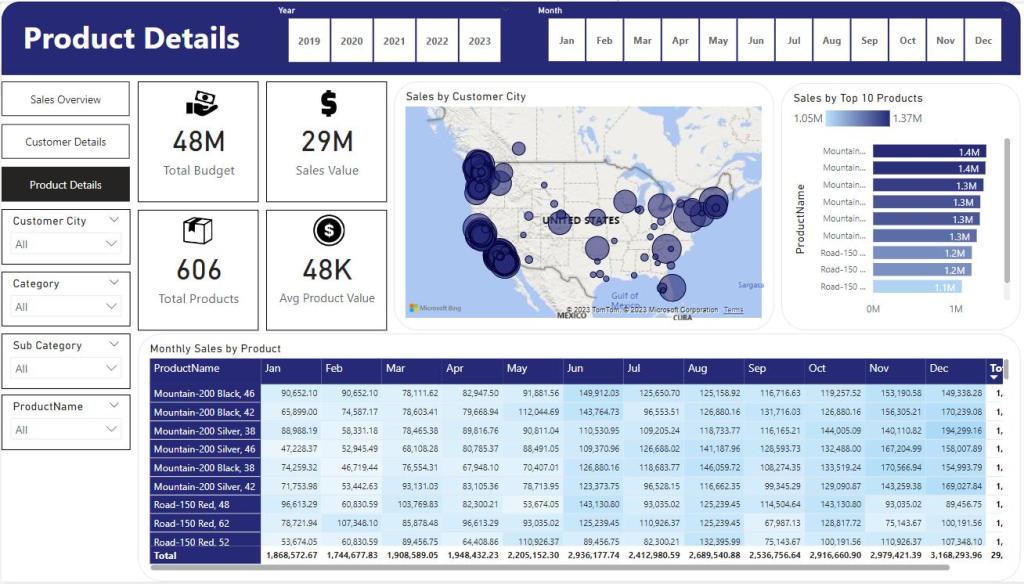
The Sales Management Dashboard is now fully functional, comprising one overview page and two additional pages dedicated to consolidating tables for essential insights and visualizations. These additional pages facilitate the analysis of sales trends over time, by customer and by product.

 Joshua Lamothe